
Developer Account
Setting up your developer account
Developer Account
A developer account adds the Developer Dashboard to your Finterion account. From there you can create organizations, manage algorithms, upload research, prepare releases, and publish strategies. You can register as a developer from the start or add developer access to an existing investor account.
Create a new developer account
Use this path when you do not have a Finterion account yet.
- Open the registration page.
- Select Developer Account.
- Continue to the developer registration form.
- Enter your developer email and create a secure password.
- Choose whether to use the same address for personal account notifications.
- Review and accept the Developer Terms of Service and User Terms of Service.
- Select Create Developer Account.
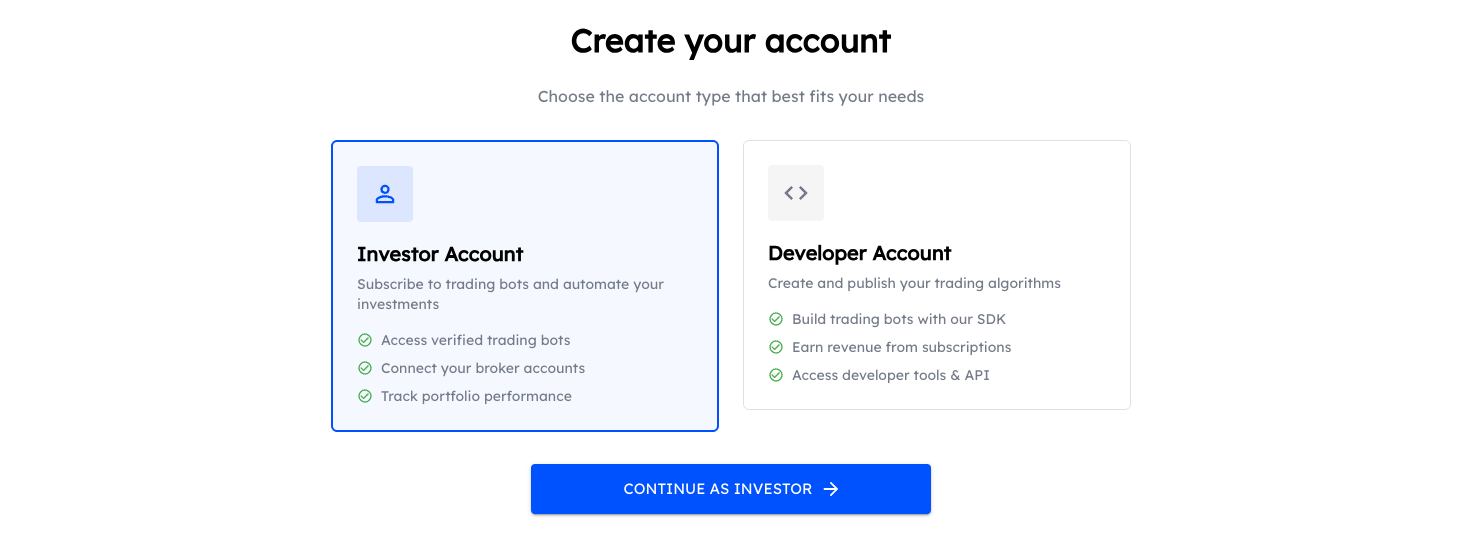
Choose Developer Account to open the developer registration form.
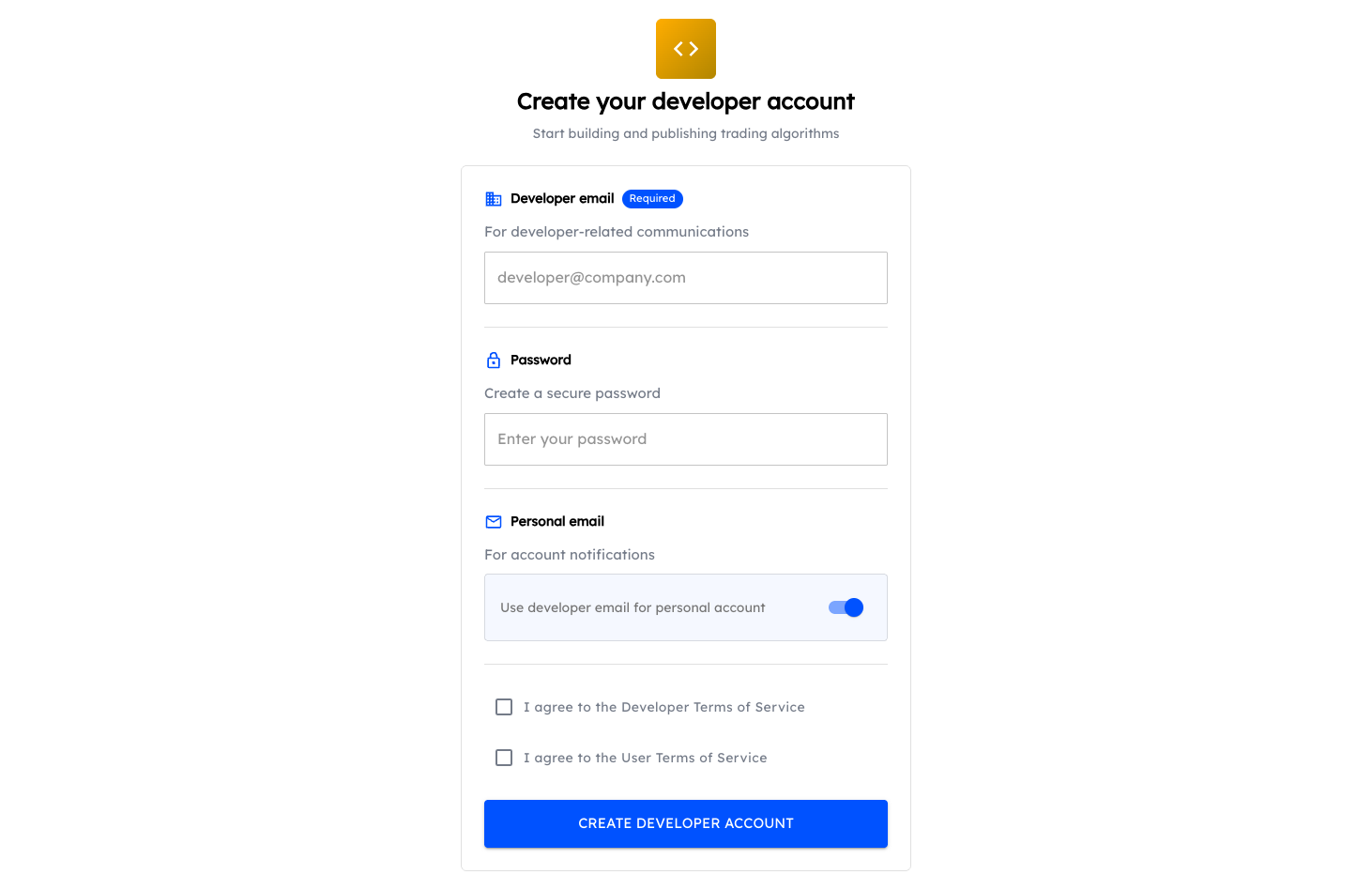
Enter the email used for developer communications, then accept both terms of service.
After registration, open the verification message sent to your developer email and follow its link. Email verification is required before you can finish setting up developer resources.
Convert an existing account
You do not need to create a second Finterion account. Developer access can be added to your existing investor account, and you can switch between the Investor Dashboard and Developer Dashboard afterward.
- Sign in to your existing Finterion account.
- Open Dashboard, then Settings.
- Select Developer Account under the Developer section.
- Select Apply for Developer Account.
- Enter the email you want to use for developer communications.
- Select Apply for developer account in the registration dialog.
- Open the verification message sent to that address and confirm your email.
You can also start this flow from the dashboard chooser. Open Dashboard in the main navigation, choose the Developer pane, then select Set up developer account.
Adding developer access does not remove your investor profile, portfolios, subscriptions, or connections. It adds a developer profile and access to the Developer Dashboard.
Set up your first organization
Algorithms and research belong to an organization. After your developer email is verified:
- Open the Developer Dashboard.
- Follow the organization setup prompt.
- Enter the organization name and contact details.
- Review the organization settings and create it.
Your first organization becomes the default destination when you open the Developer Dashboard. You can create additional organizations later and switch between them from the dashboard navigation.
Manage your developer email
To change the address used for developer communications:
- Open Dashboard, then Settings.
- Select Developer Account.
- Update Developer Email and select Save.
- Confirm the change and verify the new address.
Keep this address current. Finterion uses it for developer account notices, organization communication, validation updates, and publication-related messages.
Next steps
- Install the Finterion CLI for project and CI workflows.
- Install the Python SDK for notebooks and Python automation.
- Learn how to upload and validate strategy code.